

Bill customers on a schedule for memberships, services and plans.
Subscriptions let you bill a customer on a regular schedule, such as a monthly gym membership or a yearly service plan. You design the plan once as a template, share it with a subscription link, and SADAD Pay keeps track of each customer's billing schedule.
How customers pay
SADAD Pay does not store cards or charge customers automatically. For each billing period, the customer pays the amount due from their subscription page, using KNET, card or Apple Pay. With Auto Renew, SADAD Pay keeps the subscription going and sends reminders each cycle.
How it works
Step 1: Create a template
A template describes one plan. Go to Subscriptions → Templates → Add Template.
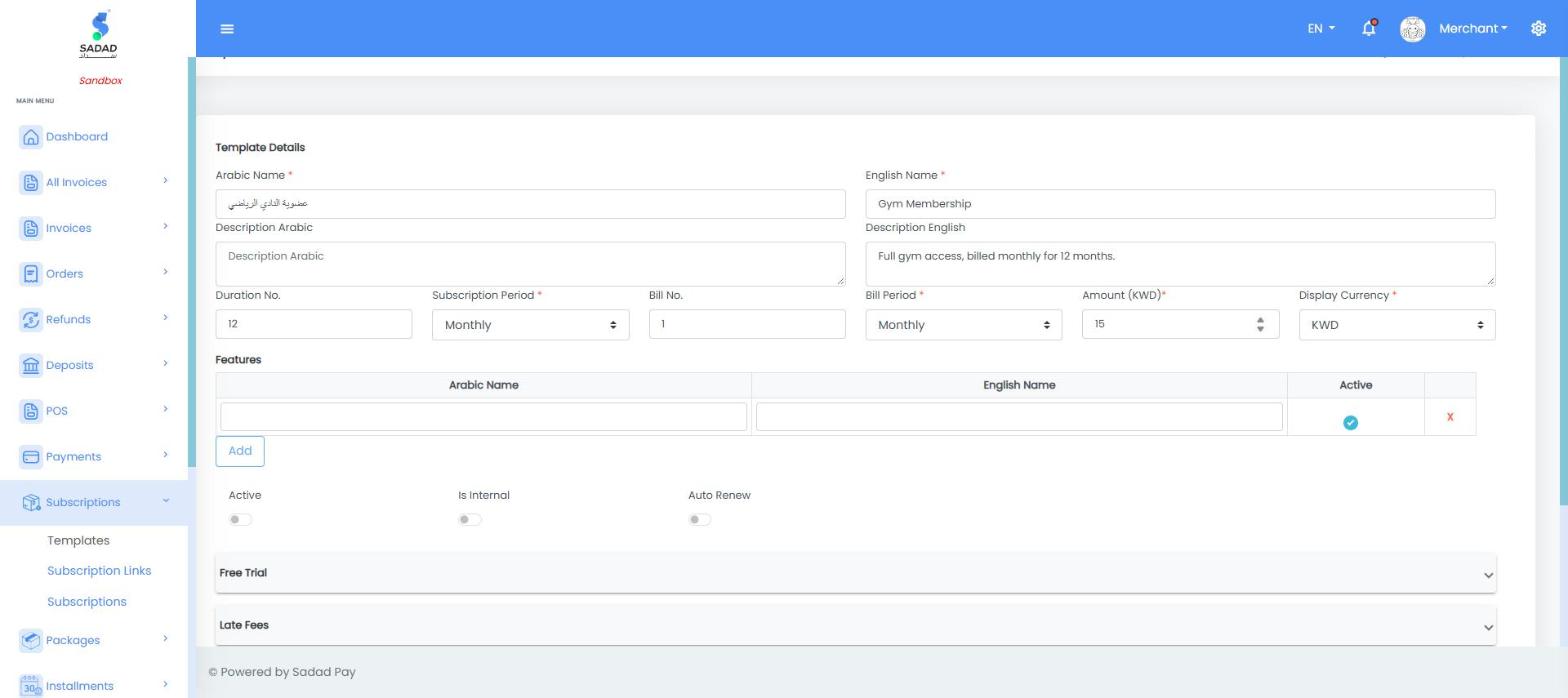
Creating a subscription template
| Field | Description | Example |
|---|---|---|
| Arabic / English Name | The plan name customers see | Gym Membership |
| Arabic / English Description | What the plan includes | Full gym access |
| Duration No. + Subscription Period | How long the subscription lasts: a number of months or years, or Unlimited | 12 Monthly = one year |
| Bill No. + Bill Period | How often the customer is billed: Weekly, Monthly, Quarterly or Yearly | 1 Monthly = a bill every month |
| Amount | The amount of each bill | 15.000 KWD |
| Display Currency | The currency shown to the customer | KWD |
| Features | A list of what the plan includes, shown on the subscription page | Pool, sauna |
| Active | Turn on so the plan can be used | |
| Auto Renew | Keep the subscription going when the duration ends |
Optional sections at the bottom of the form:
- Free Trial: a free period before the first bill.
- Late Fees: a fee added when a bill is paid late, with a grace period.
- Suspension & Cancelation: fees for suspending or cancelling, and how long before an unpaid subscription closes automatically.
- Branches: if you have several locations, the branches the plan applies to.
Example
Duration 12 Monthly, Bill 1 Monthly, Amount 15.000 KWD gives the customer 12 monthly bills of 15.000 KWD.
Step 2: Create a subscription link
- Go to Subscriptions → Subscription Links → Add Subscription Link.
- Enter the English and Arabic name of the page.
- Under Templates, click the plans you want to offer. They move to Chosen Templates.
- Optional: add Terms and Conditions and choose the Payment Methods.
- Make sure Active is on, and click Submit.
Your link appears in Subscription Links with an English and an Arabic URL:
https://sadadpay.net/subscriptionLnk/en/{key}
https://sadadpay.net/subscriptionLnk/ar/{key}
In Sandbox, the domain is sandbox.sadadpay.net.
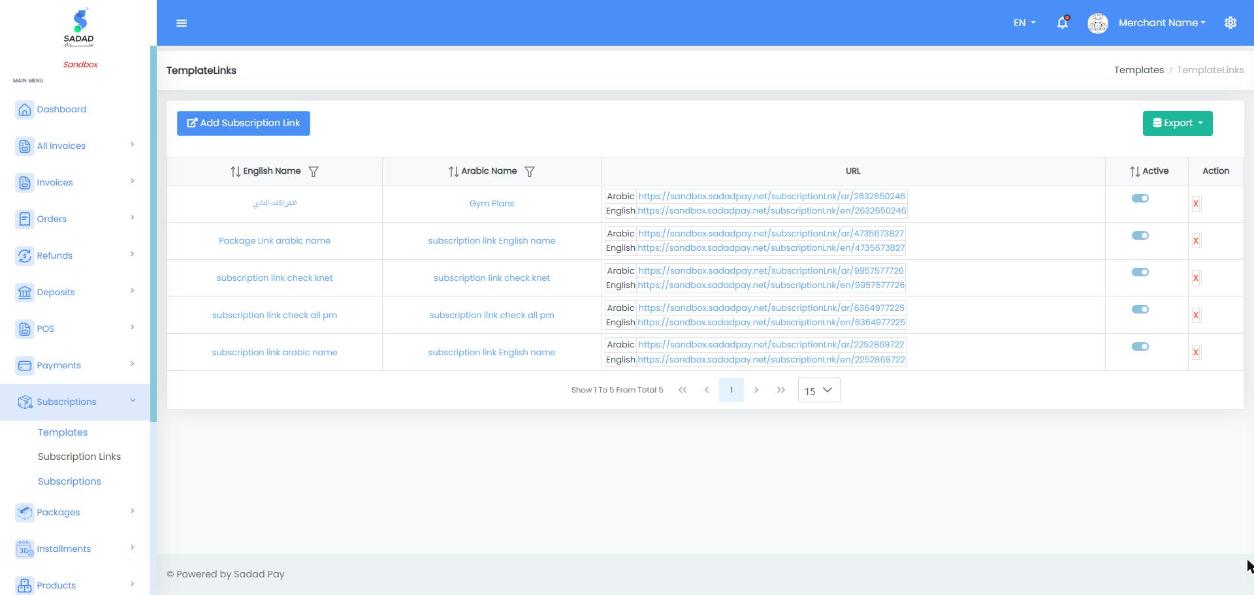
Subscriptions → Subscription Links: each link has an English and an Arabic URL to share
Step 3: The customer subscribes
- The customer opens the link and sees each plan with its price, subscription period and bill period.
- They tap Subscribe, enter their name and mobile number (email is optional), accept the terms, and tap Subscribe again.
- SADAD Pay creates their subscription with its full billing schedule, and opens their subscription page.
The subscription page shows the amount due now, a Pay Now button, and the schedule of all bills with their due dates and status. The customer keeps this link to pay each bill.
https://sadadpay.net/subscription/payment/{subscription_key}
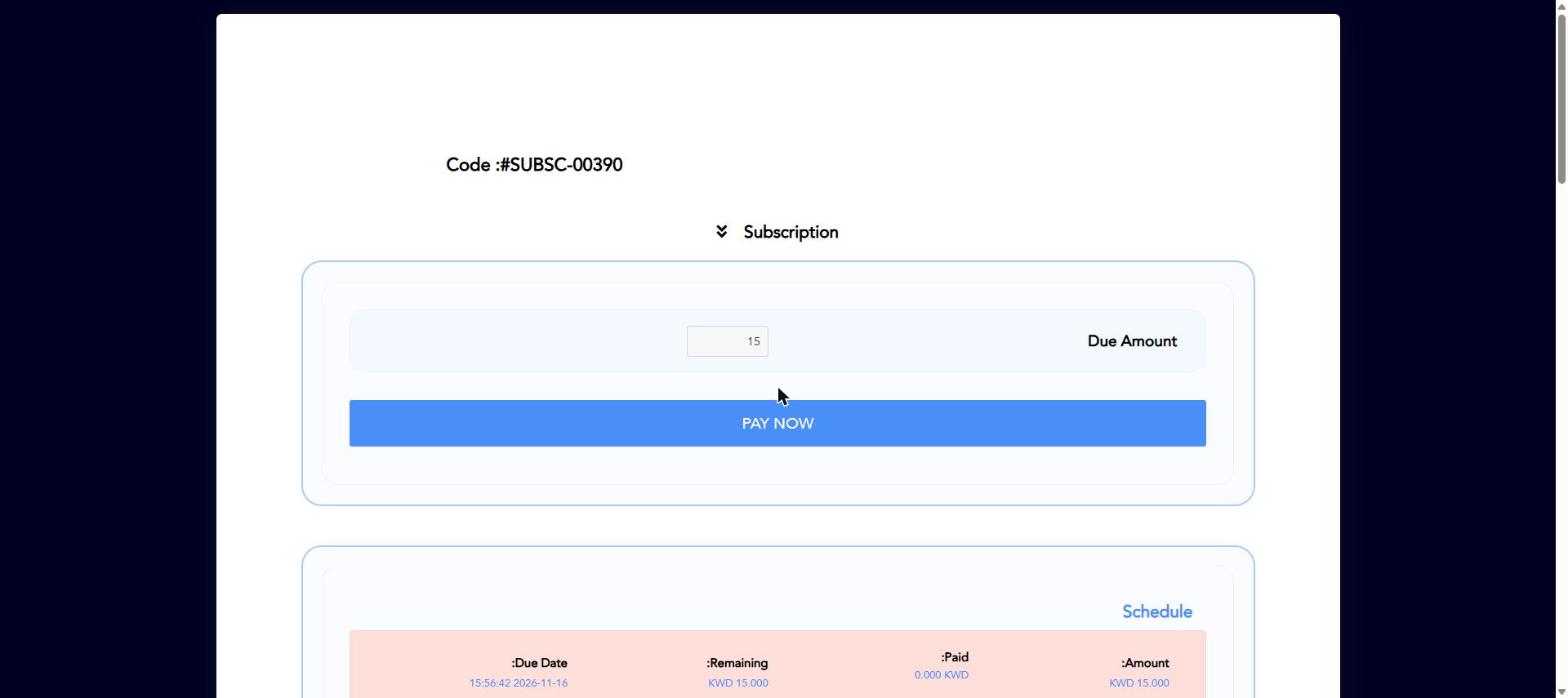
A customer's subscription page, with the amount due and the billing schedule
Step 4: Track subscriptions
Go to Subscriptions → Subscriptions to see every subscriber, with their details, start date, status and amount. Click Cancel to end a subscription.
Each bill a customer pays creates an invoice, which appears under Invoices. Confirm payments as usual with Verify Payment Status or Webhooks.
Create a bill payment with the API
If you show the subscription in your own app, you can create the invoice for the amount due and send the customer straight to the payment page.
POST /api/Invoice/createSubscriptioninvoice
| Field | Type | Required | Description | Example |
|---|---|---|---|---|
subscription_Key | integer | Yes | The customer's subscription key (from their subscription page URL), not the subscription link key | 79988269390 |
customer_Name | string | Yes | The customer's name | "Ahmed Ali" |
customer_Mobile | string | Yes | The customer's mobile number | "99999999" |
totalAmount | number | Yes | The amount due | 15.000 |
currency_Code | string | Yes | KWD | "KWD" |
customer_Email | string | No | The customer's email | "[email protected]" |
lang | string | No | en or ar | "en" |
curl -X POST "https://apisandbox.sadadpay.net/api/Invoice/createSubscriptioninvoice" \
  -H "Authorization: Bearer YOUR_ACCESS_TOKEN" \
  -H "Content-Type: application/json" \
  -d '{
    "subscription_Key": 79988269390,
    "customer_Name": "Ahmed Ali",
    "customer_Mobile": "99999999",
    "lang": "en",
    "totalAmount": 15.000,
    "currency_Code": "KWD"
  }'
{
  "isValid": true,
  "errorKey": null,
  "response": {
    "invoice_Key": 3186901792957
  }
}
{
  "isValid": false,
  "errorKey": "InvalidKey",
  "response": null
}
Send the customer to https://sandbox.sadadpay.net/pay/{invoice_Key} (Live: https://sadadpay.net/pay/{invoice_Key}).
Use the subscription key
The key in a subscription link (
/subscriptionLnk/en/{key}) is not accepted and returnsInvalidKey. Use the key from the customer's subscription page (/subscription/payment/{key}).
Common errors
| errorKey | Cause | How to fix |
|---|---|---|
InvalidKey | subscription_Key is not a customer subscription key | Use the key from /subscription/payment/{key} |
CustomerNameRequired | customer_Name is missing | Send the customer's name |
InvalidAccessToken (HTTP 401) | The Access Token is missing, wrong or expired | Generate a new Access Token |
Next steps
- Spread one purchase over several payments with Installments.
- Confirm each payment with Verify Payment Status.