

Get paid without a website: send invoices from the portal or the API, and share reusable payment links.
You do not need a website or any code to get paid with SADAD Pay. Create an invoice in the portal and send it to your customer by SMS, email or WhatsApp, or share a payment link that anyone can pay. If you do have a system, you can do the same things through the API.
Which one should I use?
| You want to... | Use |
|---|---|
| Bill a specific customer for a specific amount | Invoice |
| Bill many customers at once, such as monthly fees | Batch invoices |
| Put one link on Instagram, WhatsApp or a QR code for anyone to pay | Payment link |
| Create invoices automatically from your system or website | Invoice API or the Hosted Payment Page |
Every payment, from any of these, appears in the portal under Invoices, with the same statuses and the same settlement to your bank account.
Invoices in the portal
There are two ways to create an invoice in the portal:
- Quick Invoice: the essentials only (customer, amount, how to send it). Best for a fast one-off bill.
- Add Invoice: everything in Quick Invoice, plus line items, a discount, an automatic reminder, terms and conditions, and an attachment.
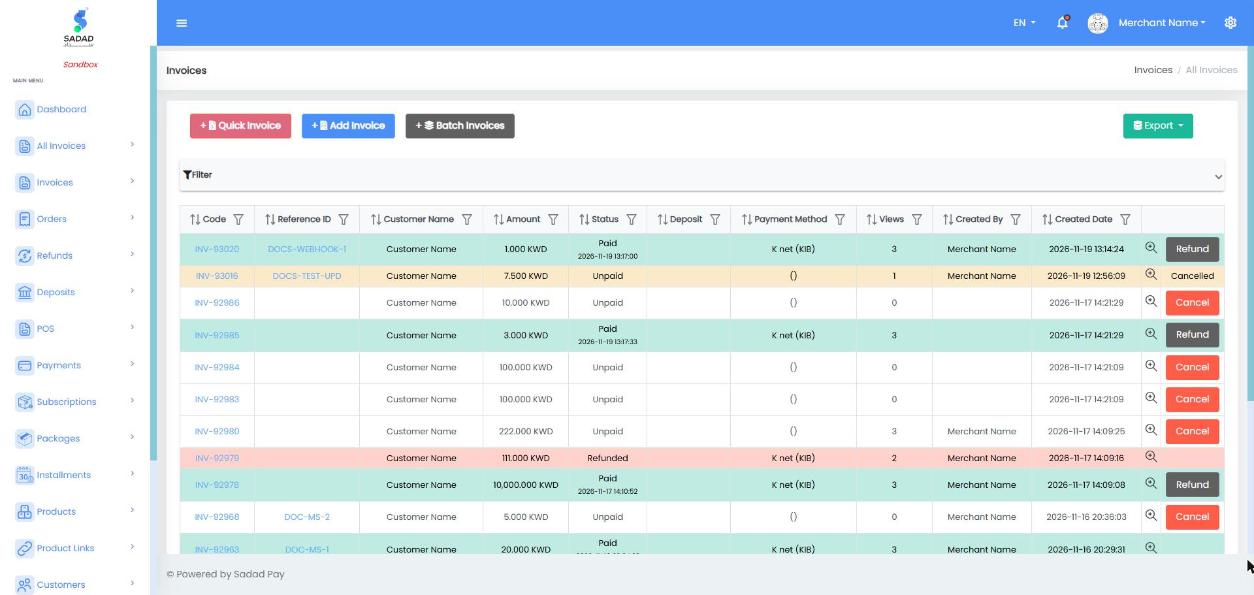
Invoices list in the portal, with buttons for Quick Invoice, Add Invoice and Batch Invoices
Create and send an invoice
- In the portal, go to Invoices → Quick Invoice (or Add Invoice).
- Enter the Customer Name, and the Mobile or Email you will send the invoice to.
- Enter the Invoice Value and choose the Display Currency.
- Choose how to send it in Send Invoice Option: SMS or Email.
- Optional: add a Reference ID (your own order number), the invoice Language, a Payment Purpose, or an attachment.
- Under Payment Methods, untick any method you do not want to offer on this invoice.
- Click Submit. SADAD Pay creates the invoice and sends the payment link to your customer.
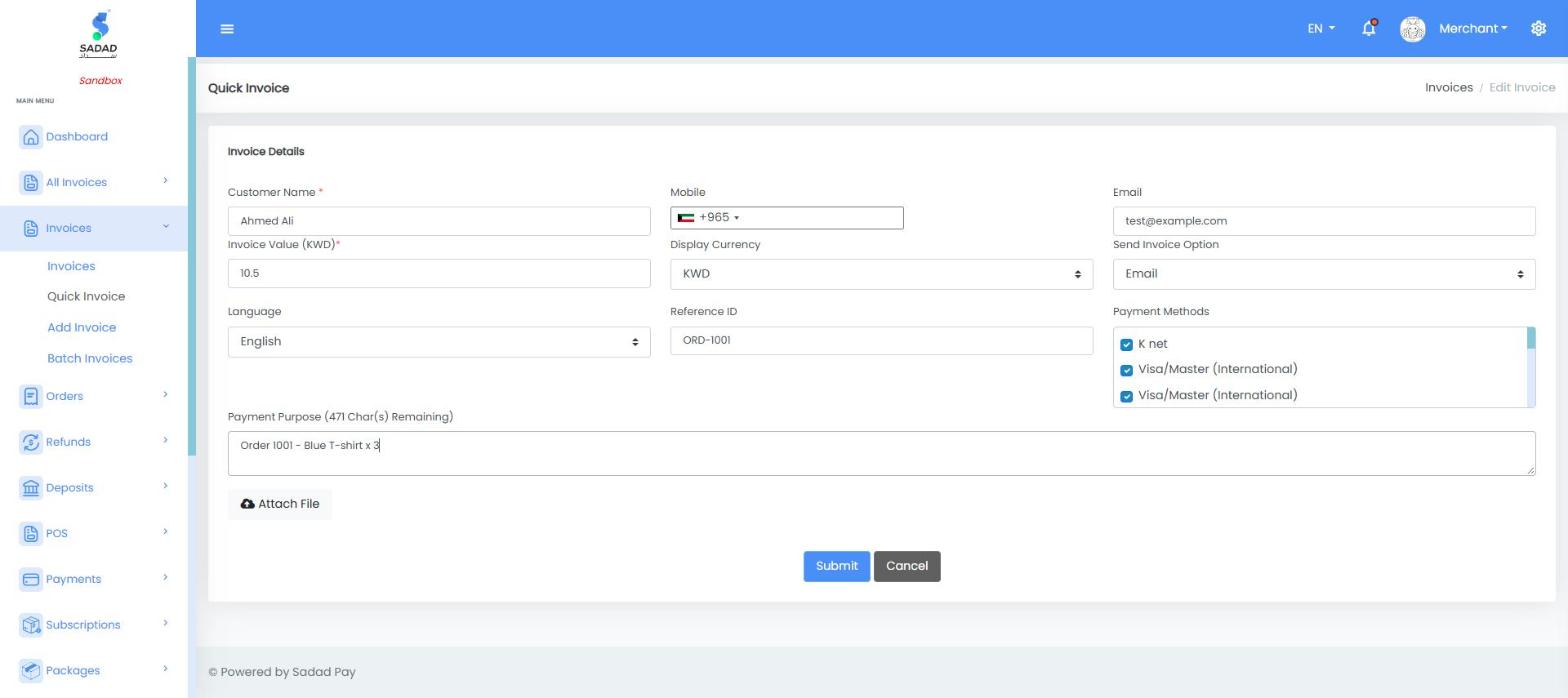
Creating a Quick Invoice in the portal
Share the invoice another way
Open the invoice from Invoices to share it again or through another channel. The buttons at the top let you:
- Copy link to paste the payment link anywhere
- Send it by Email, Messenger, SMS or WhatsApp
- Download as PDF
The invoice page also shows a QR code that your customer can scan to pay.
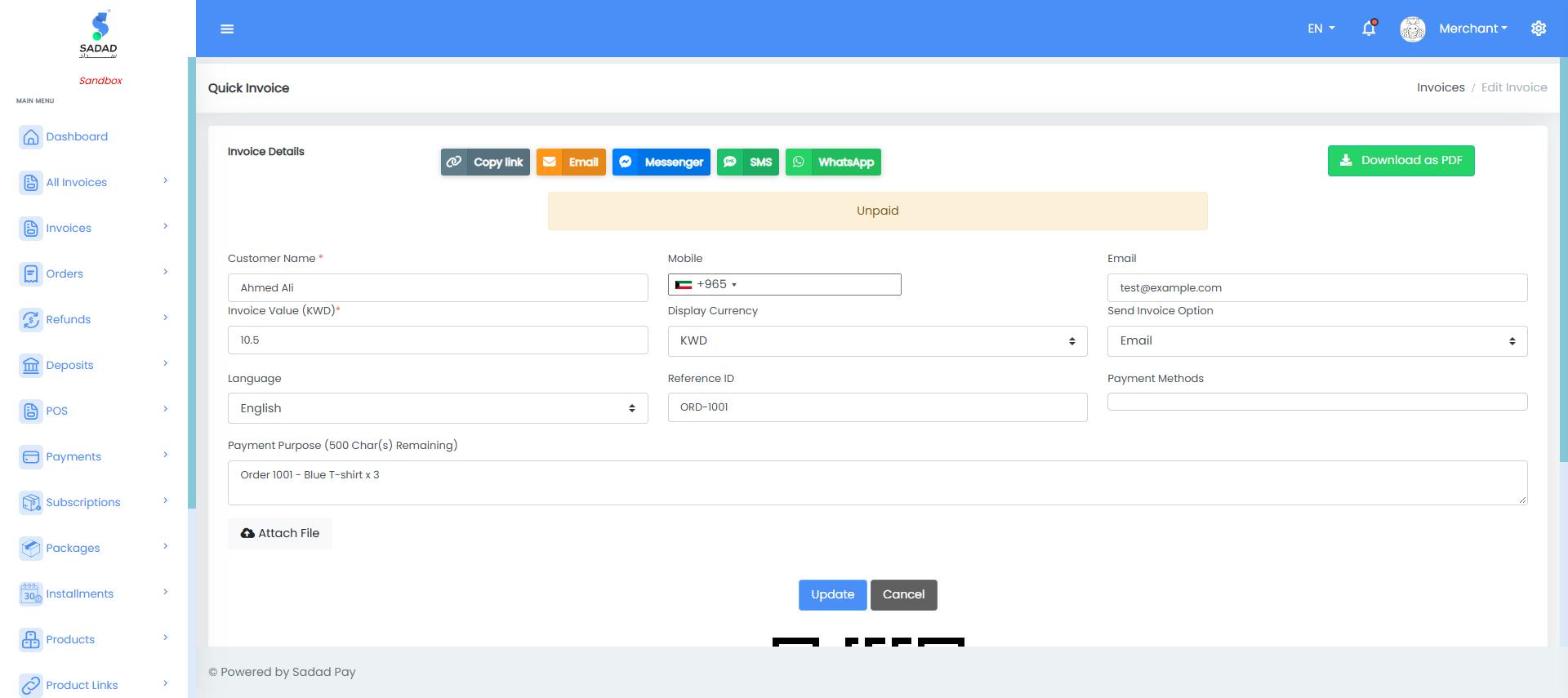
Share buttons on the invoice page
How long can the customer pay?
An invoice can be paid for 30 days after it is created. After that it expires. You can change an unpaid invoice at any time from its page, and click Cancel in the invoice list to stop it being paid.
Add Invoice options
| Option | What it does |
|---|---|
| Invoice items | List each product or service with its quantity and unit price. The invoice value is the total of the items. |
| Discount Type / Discount Amount | A fixed amount or a percentage off the invoice value. |
| Reminder After | Send the customer a reminder if the invoice is still unpaid after the period you choose. |
| Terms and Conditions | Text the customer must accept before paying. |
| Attach File | A document for the customer, such as a quotation or contract. |
Batch invoices from Excel
Create and send many invoices in one go, for example monthly school fees or membership renewals.
- Go to Invoices → Batch Invoices and click Download sample excel file.
- Fill in one row per invoice, using the columns below. Keep the header row exactly as it is.
- Click Batch File, choose your file, then click Import invoices.
Invoices are sent straight away
Every invoice in the file is created and sent to its customer as soon as you import it. Check the file carefully before you import.
| Column | Required | Description | Example |
|---|---|---|---|
customer_Name | Yes | Customer's name | Ahmed Ali |
amount | Yes | Invoice amount, in currency_Code | 25.000 |
currency_Code | Yes | KWD, USD, SAR, AED or QAR | KWD |
sendType | Yes | SMS or Email | SMS |
customer_Mobile | For SMS | Mobile number to send the invoice to | 99999999 |
customer_Email | For Email | Email address to send the invoice to | [email protected] |
lang | No | en or ar | en |
ref_Number | No | Your own reference number | FEES-NOV-001 |
payment_Methods | No | The payment methods to offer, as IDs separated by commas | 5,4,35 |
Finding your payment method IDs
Go to Profile → Payment Methods. The ID of each method is in the first column. The IDs can be different on each account, and between Sandbox and Live.
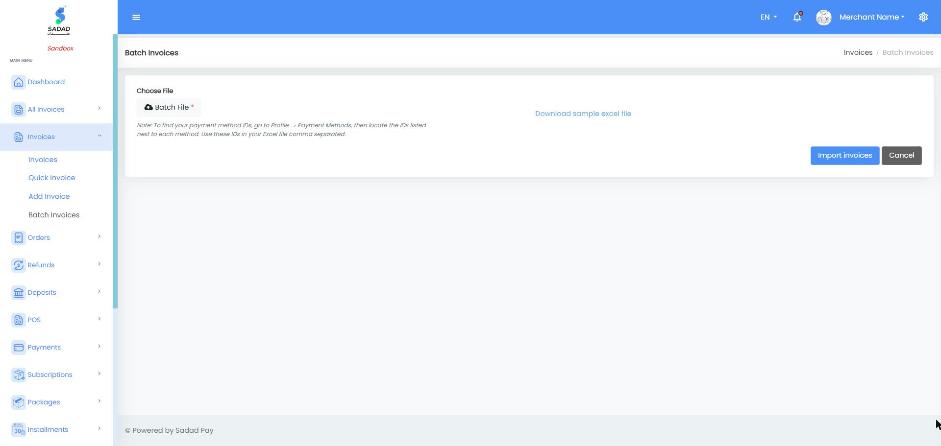
Invoices → Batch Invoices: download the sample Excel file, fill it in and import it
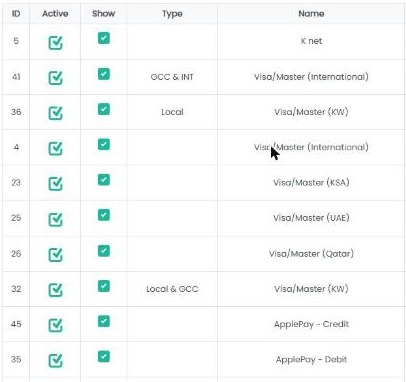
Profile → Update Profile → Payment Methods: the ID column gives the payment method IDs for the Excel file
Payment links
A payment link is a single, reusable link for a product, service or donation. You share it once, and any number of customers can pay through it. Each payment creates its own invoice.
| Payment Type | The customer... | Good for |
|---|---|---|
| Fixed Amount | Pays the amount you set | Event tickets, course fees, a set service price |
| Variable Amount | Enters the amount, within the range you set | Donations, deposits, paying an open balance |
Create a payment link
- Go to Payments → Add Payment.
- Enter a Url Title. Your customers see this as the name of the payment.
- Choose the Payment Type. For a fixed amount, enter the Amount. For a variable amount, enter the Min Amount and Max Amount. Then choose the Display Currency.
- Optional: add Notes, Terms and Conditions, and choose the Language and Payment Methods.
- Make sure Active is on, then click Submit.
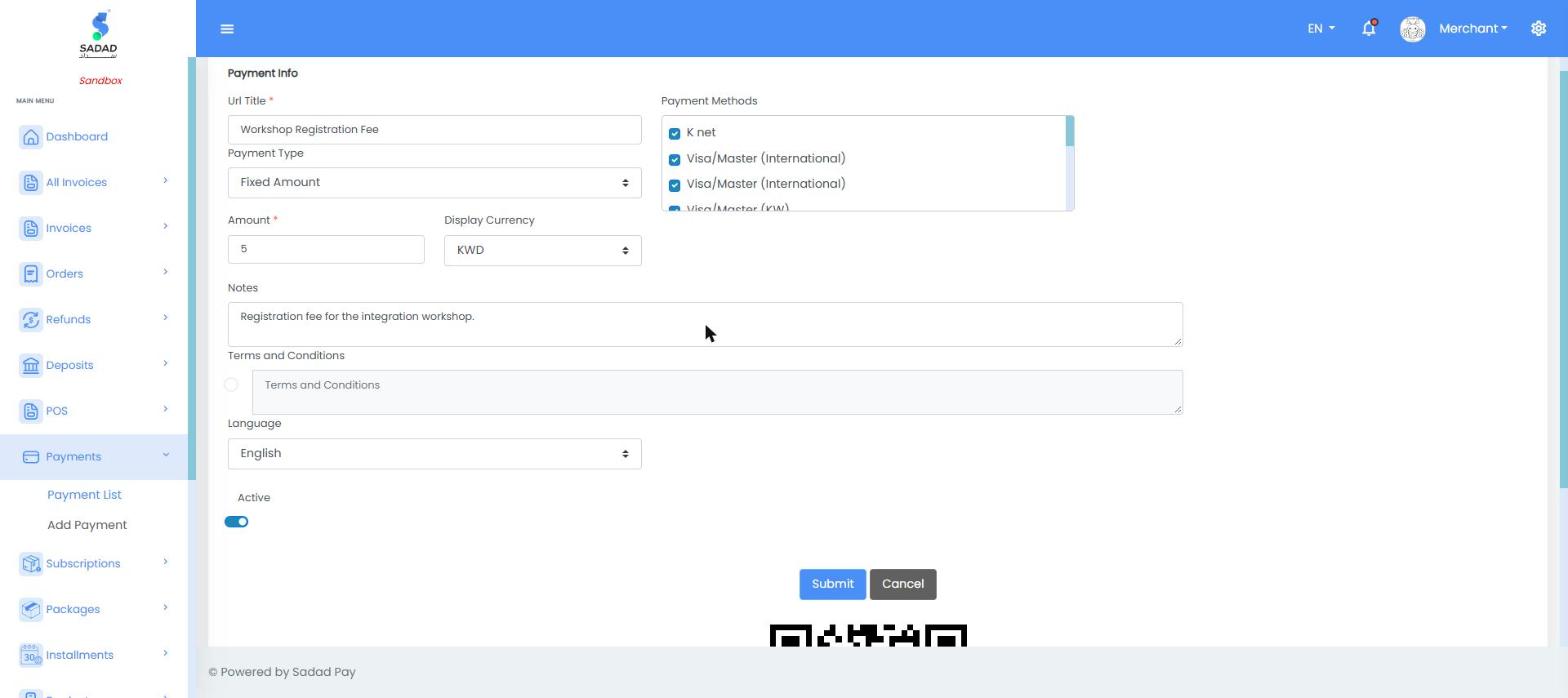
Creating a fixed-amount payment link
Your link appears in Payments → Payment List, in the format:
https://sadadpay.net/CustomerPayment/{key}
In Sandbox, the domain is sandbox.sadadpay.net. To stop accepting payments, turn Active off in the Payment List.
What your customer sees
The customer opens the link, enters their name (and the amount, for a variable link), and taps Pay Now. SADAD Pay creates an invoice for them and opens the usual payment page, where they choose KNET, card or Apple Pay.
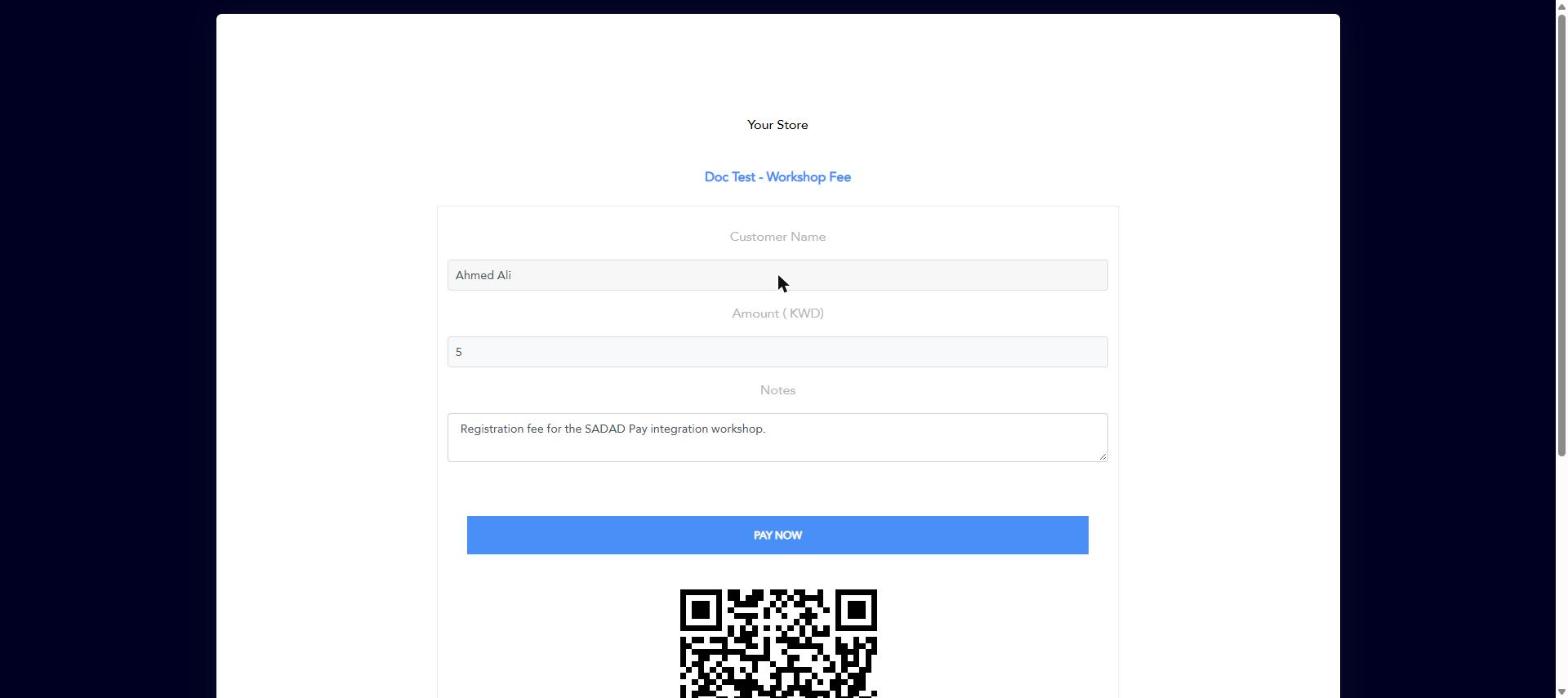
The payment link page your customer sees
Where do payment link payments appear?
Each payment creates an invoice of type
PaymentLink. You will find it under Invoices, together with your other invoices.
Manage invoices with the API
Everything above can also be done from your own system. You need an Access Token: see API Keys & Authentication. All examples use the Sandbox URL.
| Task | Endpoint |
|---|---|
| Create one or more invoices | POST /api/Invoice/insert · see Hosted Payment Page |
| Get one invoice | GET /api/Invoice/getbyid?id={id} |
| Search invoices, page by page | GET /api/Invoice/getallbypage |
| Change an unpaid invoice | PUT /api/Invoice/update |
| Cancel an unpaid invoice | DELETE /api/Invoice/delete?id={id} |
| Create an invoice from a payment link | POST /api/Invoice/createpaymentlinkinvoice |
Send the invoice to the customer
When you create an invoice with POST /api/Invoice/insert, add sendType (SMS or Email) with customer_Mobile or customer_Email, the same as Send Invoice Option in the portal. If you show the payment link to the customer yourself, leave sendType out. The full field list is on the Hosted Payment Page guide.
Search invoices
GET /api/Invoice/getallbypage · API Reference
All filters are optional. Combine as many as you need.
| Parameter | Description | Example |
|---|---|---|
page, pageSize | Which page to return, and how many invoices per page | 1, 50 |
status | Unpaid, Paid, Canceled, Deposited or Refunded | Paid |
Ref_Number | Your reference number | ORD-1001 |
code | The invoice code | INV-71461 |
invoiceType | For example Invoice or PaymentLink | PaymentLink |
createDate_From, createDate_To | Created between these dates (MM/dd/yyyy) | 11/01/2026 |
Payment_Date_From, Payment_Date_To | Paid between these dates (MM/dd/yyyy) | 11/30/2026 |
customer_Name, customer_Mobile, customer_Email | Customer details | Ahmed Ali |
amount_From, amount_To | Amount range | 10 |
curl -G "https://apisandbox.sadadpay.net/api/Invoice/getallbypage" \
  -H "Authorization: Bearer YOUR_ACCESS_TOKEN" \
  --data-urlencode "page=1" \
  --data-urlencode "pageSize=50" \
  --data-urlencode "status=Paid" \
  --data-urlencode "Payment_Date_From=11/01/2026" \
  --data-urlencode "Payment_Date_To=11/30/2026"
{
  "isValid": true,
  "errorKey": null,
  "response": {
    "totalRecords": 7,
    "items": [
      {
        "id": 71461,
        "code": "INV-71461",
        "status": "Paid",
        "type": "Invoice",
        "amount": 1.5,
        "total": 1.5,
        "fees": 0.045,
        "subtotal": 1.455,
        "customer_Name": "Ahmed Ali",
        "customer_Email": "[email protected]",
        "currency_Code": "KWD",
        "ref_Number": "ORD-1001",
        "createDate": "11/09/2026 12:41:15",
        "payment_Date": "11/09/2026 12:43:36"
      }
    ]
  }
}
In the list response, fees is the SADAD Pay fee and subtotal is the amount you receive after fees. Use totalRecords to work out how many pages there are.
Update an unpaid invoice
PUT /api/Invoice/update · API Reference
Send the invoice id with the fields you want to change. Fields you leave out keep their current value. To be safe, get the invoice first, change what you need, and send it back.
curl -X PUT "https://apisandbox.sadadpay.net/api/Invoice/update" \
  -H "Authorization: Bearer YOUR_ACCESS_TOKEN" \
  -H "Content-Type: application/json" \
  -d '{
    "id": 71598,
    "amount": 15.000,
    "currency_Code": "KWD",
    "customer_Name": "Ahmed Ali"
  }'
{
  "isValid": true,
  "errorKey": null,
  "response": null
}
{
  "isValid": false,
  "errorKey": "InvoiceCannotBeUpdated",
  "response": null
}
Cancel an unpaid invoice
DELETE /api/Invoice/delete?id={id} · API Reference
The invoice is cancelled: its payment link stops working, and it shows as Cancelled in the portal. It is kept for your records. When you get it with getbyid, it has "deleted": true. A paid invoice cannot be cancelled. Use a refund instead.
curl -X DELETE "https://apisandbox.sadadpay.net/api/Invoice/delete?id=71598" \
  -H "Authorization: Bearer YOUR_ACCESS_TOKEN"
{
  "isValid": true,
  "errorKey": null,
  "response": null
}
{
  "isValid": false,
  "errorKey": "InvoiceCannotBeDeleted",
  "response": null
}
Create an invoice from a payment link
POST /api/Invoice/createpaymentlinkinvoice · API Reference
Creates the same invoice as when a customer taps Pay Now on your payment link. Use it when you collect the customer's details in your own app or chatbot.
| Field | Type | Required | Description | Example |
|---|---|---|---|---|
paymentLink_Key | integer | Yes | The number at the end of your payment link URL | 24206710181 |
customer_Name | string | Yes | The customer's name | "Ahmed Ali" |
amount | number | Yes | For a fixed link, the link's amount. For a variable link, an amount within its range. | 5.000 |
currency_Code | string | Yes | The link's currency | "KWD" |
customer_Mobile | string | No | The customer's mobile number | "99999999" |
customer_Email | string | No | The customer's email address | "[email protected]" |
comment | string | No | A note on the invoice | "Workshop seat" |
curl -X POST "https://apisandbox.sadadpay.net/api/Invoice/createpaymentlinkinvoice" \
  -H "Authorization: Bearer YOUR_ACCESS_TOKEN" \
  -H "Content-Type: application/json" \
  -d '{
    "paymentLink_Key": 24206710181,
    "customer_Name": "Ahmed Ali",
    "customer_Email": "[email protected]",
    "amount": 5.000,
    "currency_Code": "KWD"
  }'
{
  "isValid": true,
  "errorKey": null,
  "response": {
    "invoice_Key": 2658568171599
  }
}
Send your customer to https://sandbox.sadadpay.net/pay/{invoice_Key} (https://sadadpay.net/pay/{invoice_Key} in Live). The key ends with the invoice ID: 2658568171599 is invoice 71599.
Confirm the payment
However the invoice was created, check that it is paid before you deliver:
- In the portal: the invoice status in Invoices changes to Paid, and you get a notification.
- In your system: call
GET /api/Invoice/getbyid?id={id}and checkstatus. For invoices you create through the API, you can also receive a webhook. Invoices created in the portal do not send webhooks.
| Status | Meaning |
|---|---|
Unpaid | Waiting for payment |
Paid | Paid successfully |
Deposited | Paid, and transferred to your bank account |
Refunded | The full amount was refunded. After a partial refund the status stays Paid. |
Canceled | Cancelled before it was paid |
Expired | The expiry date passed and the payment page was opened. Until then, an expired invoice can still show Unpaid. |
Common errors
| errorKey | Endpoint | Cause | How to fix |
|---|---|---|---|
InvoiceCannotBeUpdated | update | The invoice is already paid | Only unpaid invoices can be changed |
InvoiceCannotBeDeleted | delete | The invoice is already paid | Use a refund instead |
InvalidAmount | createpaymentlinkinvoice | The amount does not match the fixed link, or is outside the variable link's range | Send the link's amount, or an amount within its range |
CustomerNameRequired | createpaymentlinkinvoice | customer_Name is missing | Send the customer's name |
CustomerMobileRequired | createpaymentlinkinvoice | The paymentLink_Key does not exist | Check the key at the end of your payment link URL, and that you are using the right environment |
UnauthorizedAccess (HTTP 401) | All | The Access Token is missing, wrong or expired | Generate a new Access Token |
Next steps
- Get notified on your server when an invoice is paid with Webhooks.
- Try a payment with the Test Cards.
- Accept payments on your website with the Hosted Payment Page.