

How each invoice status should update your orders, and what to tell your customer.
This page explains how a SADAD Pay invoice moves through its statuses, and how to reflect each one in your own order system and in what you tell your customer. To learn how to read the status from the API, see Verify Payment Status.
The invoice lifecycle
Unpaid → Paid → Deposited is the normal path. A full refund moves it to Refunded; a partial refund only raises refunded_Amount. Canceled and Expired can only follow Unpaid. Expired appears once the payment page is opened after the expiry date.
| From | To | What causes it |
|---|---|---|
| — | Unpaid | You create the invoice (portal, API, payment link or embedded session) |
Unpaid | Paid | The customer pays successfully |
Unpaid | Canceled | You cancel it in the portal, or with DELETE /api/Invoice/delete |
Paid | Deposited | SADAD Pay settles the money to your bank account |
Paid or Deposited | Refunded (full refund) or no change (partial refund) | You refund the payment. After a full refund the status becomes Refunded. After a partial refund it stays the same and refunded_Amount goes up. See Refunds. |
Expired invoices can still say
UnpaidWhen an invoice passes its
expiry_Date, the customer sees Expired on the payment page and can no longer pay, The API changes the status toExpiredonly after someone opens the payment page. Until then it keeps returning"status": "Unpaid". To know whether an unpaid invoice can still be paid, compareexpiry_Datewith the current date.
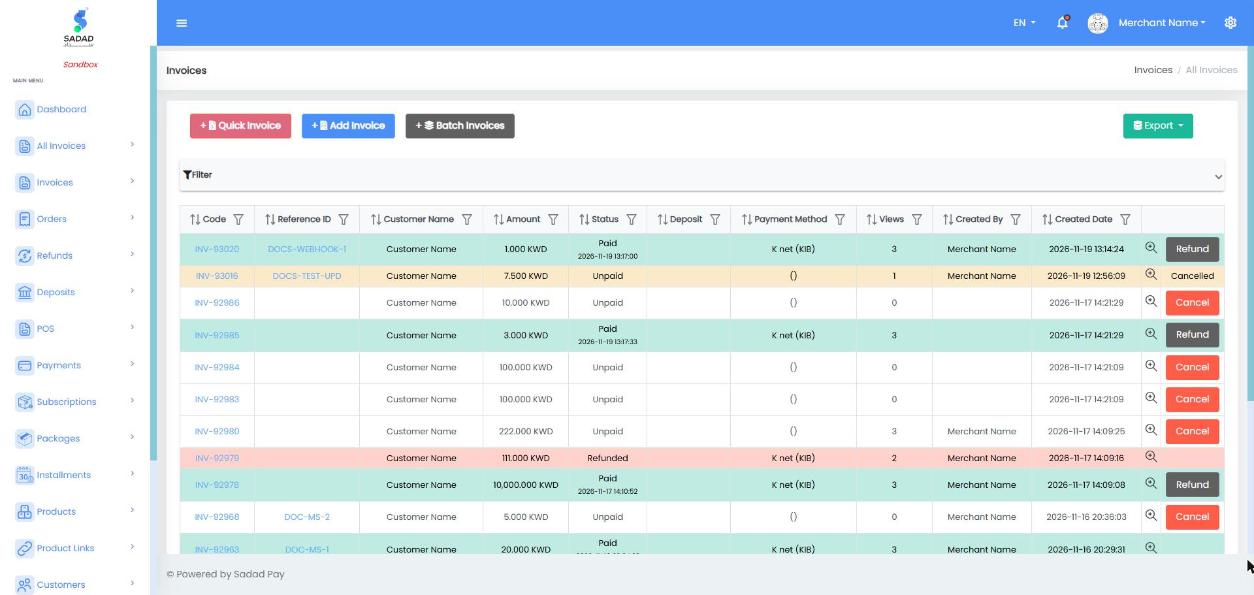
Invoice statuses as they appear in the portal: Paid, Unpaid, Refunded and Cancelled
Map SADAD Pay statuses to your orders
Use this as a starting point for your order statuses:
| SADAD Pay invoice | Your order | Show the customer |
|---|---|---|
Unpaid, no attempts yet | Pending payment | The payment link or button |
Unpaid, last attempt Failed | Pending payment | "Your payment was not completed. No money was taken. Please try again." and a retry button |
Unpaid, last attempt Pending | Pending payment | "We're waiting for your payment to be confirmed." Check again in a few minutes. |
Expired, or Unpaid past expiry_Date | Expired or Cancelled | "This payment link has expired." Create a new invoice if they still want to buy. |
Paid | Paid, then Processing | "Thank you, your payment was received." and the order confirmation |
Deposited | Paid (no change for the customer) | Nothing new |
Refunded, or Paid/Deposited with refunded_Amount above 0 | Refunded (or Partly refunded) | "Your refund has been processed." |
Canceled | Cancelled | "This order was cancelled." |
Attempts are in
transactions"Last attempt" means the last entry in the invoice's
transactionsarray. ItsstatusisPending,FailedorSuccess. See Payment attempts.
What to show on your return pages
SADAD Pay sends the customer back to your Success URL or Fail URL with invoice_id added. Verify the invoice first, then show the page that matches the verified status, not the URL they arrived on.
| Verified result | Page to show |
|---|---|
Paid and the checks pass | Order confirmation |
Unpaid with a Failed attempt | Payment failed, with a button to try again |
Unpaid with a Pending attempt, or the API cannot be reached | "Payment is being confirmed", and check again shortly |
| Amount or order number does not match | "We could not confirm your payment." Hold the order and review it |
Let the customer retry with the same invoice
An unpaid invoice can be paid again until it expires. Send the customer back to the same payment link rather than creating a new invoice. This avoids two invoices for one order.
Special cases
The customer paid two invoices for one order
This can happen if you create a new invoice on every retry. Complete the order once, using the first Paid invoice, and refund the other. Searching by your order number with getallbypage and Ref_Number shows every invoice for that order.
The invoice was paid after you cancelled the order
For example, the customer paid just before you marked the order as expired. If you can still fulfil it, reopen the order. If not, refund the payment. To avoid this, cancel the invoice too (DELETE /api/Invoice/delete) when you cancel an unpaid order.
The amount does not match
Never complete an order whose verified amount is different from the order total. Hold it and contact [email protected] with the invoice ID.
A paid order is refunded later
A refund can happen after the order is complete, for example when you refund from the portal. Check refunded_Amount to see how much was returned, and update the order. After a full refund the invoice status is Refunded; after a partial refund it stays Paid or Deposited.
Good practice
- Save the invoice ID against your order as soon as you create the invoice.
- Always verify on your server before changing an order. See Verify Payment Status.
- Make updates safe to repeat. The return page, a webhook and your scheduled check can all report the same payment.
- Never mark an order as failed just because the customer returned to your Fail URL, closed the page, or the API could not be reached. Keep it pending and check again.
- Check expiry yourself, using
expiry_Date. - Keep
transactionIDfor paid invoices. You will need it for support and refunds.
Next steps
- Get payment updates on your server with Webhooks.
- Test each case with the Test Cards.
- Before going live, follow the Go-Live Checklist.