

Split a purchase into a down payment and scheduled payments that SADAD Pay tracks for you.
With installments, a customer pays for a purchase in parts: an optional down payment, then a series of scheduled payments. SADAD Pay creates the schedule, sends the customer a link to their plan, and records each payment as it comes in.
Who carries the risk
SADAD Pay schedules and collects the payments. It does not lend money or guarantee payment: any unpaid balance stays between you and your customer.
How it works
- You create an installment plan for a customer: the total, the down payment, how many payments, and how often.
- SADAD Pay sends the customer a link to their plan by SMS or email.
- On the plan page, the customer sees the Due Amount and the full schedule, and taps Pay Now to pay what is due.
- Each payment creates an invoice. The plan tracks what has been paid and what is left.
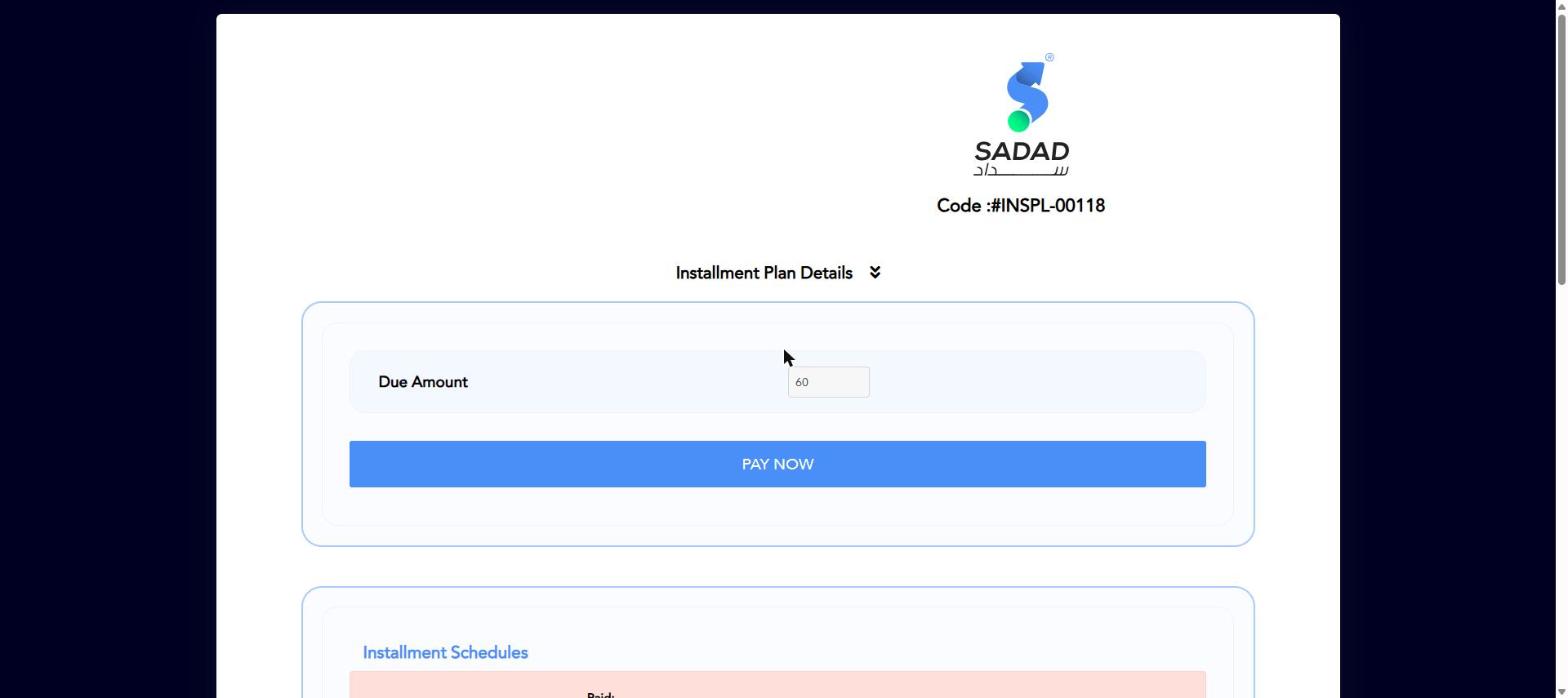
The customer's installment plan page
https://sadadpay.net/installment/payment/{plan_key}
In Sandbox, the domain is sandbox.sadadpay.net.
Create a plan in the portal
Go to Installments → Add Installment and fill in:
| Field | Description |
|---|---|
| Customer Name, Mobile, Email | Who the plan is for |
| Type | Without Product: you enter the total. With Product: you choose products from your catalogue and the total is calculated. |
| Is Flexible | Allow flexible payment amounts instead of strictly the scheduled ones |
| Send Installment Option | Send the plan link by SMS or Email |
| Payment Methods | The methods the customer can use |
| Total | The full amount to be paid |
| Schedule | The down payment and each payment, with its amount and due date |
| Files | Documents to attach, such as a contract |
| More Option | Late fees, grace period and notes |
After you save, open the plan from Installments to share it again with Copy link, Email, Messenger, SMS or WhatsApp.
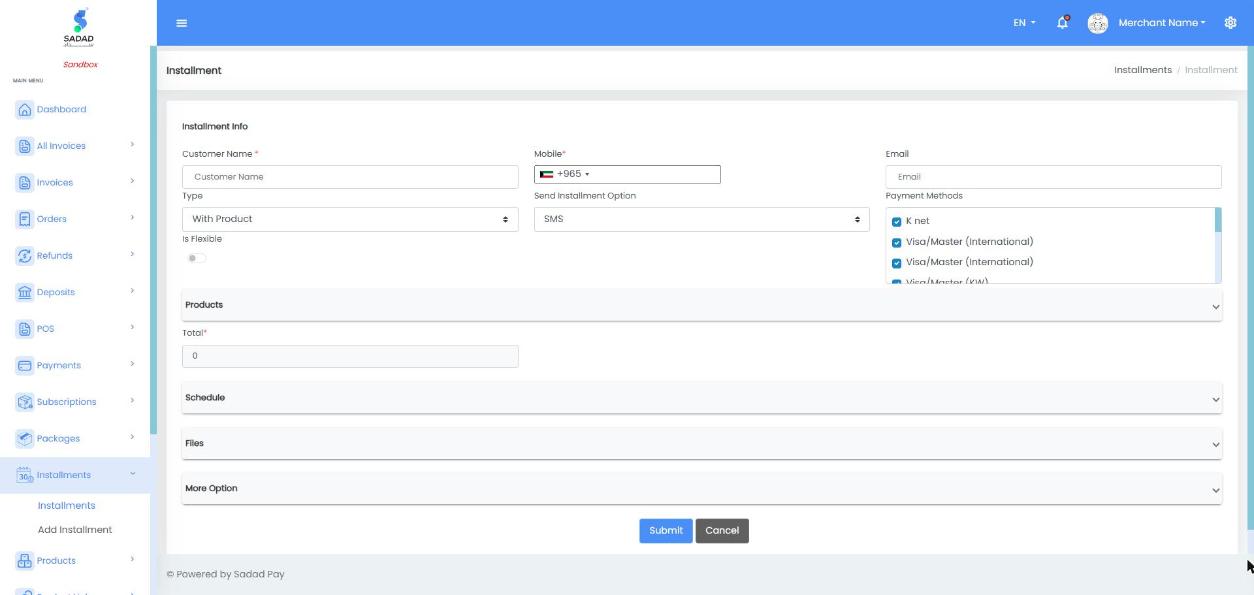
Installments → Add Installment: customer details, plan type, Is Flexible, products, schedule and files
Plan statuses
The plan status shows its progress. For example:
| Status | Meaning |
|---|---|
New | Created, no payments yet |
PartiallyCompleted | Some payments have been made |
Create a plan with the API
POST /api/InstallmentPlan/insert
| Field | Type | Required | Description | Example |
|---|---|---|---|---|
vendor_Id | integer | Yes | Your SADAD Pay vendor ID | 10204 |
customer_Name | string | Yes | The customer's name | "Ahmed Ali" |
customer_Mobile / customer_Email | string | Yes, for the send method | Where to send the plan link | "[email protected]" |
sendType | string | Yes | SMS or Email | "Email" |
type | string | Yes | WithoutProduct or WithProduct | "WithoutProduct" |
total_Amount | number | Yes | The full amount | 300.000 |
down_Amount | number | No | The down payment, due on startDate | 60.000 |
installment_Count | integer | Yes | Number of payments after the down payment | 4 |
installment_Amount | number | Yes | Amount of each payment | 60.000 |
pay_Per | string | Yes | How often: for example Monthly or Daily | "Monthly" |
startDate | string | Yes | First due date (yyyy-MM-dd) | "2026-11-16" |
schedules | array | Yes | Every payment, including the down payment. See below. | |
currency_Code | string | Yes | KWD | "KWD" |
isFlexible | boolean | No | Allow other payment amounts | false |
plan_Description | string | No | What the plan is for | "Laptop, 4 monthly payments" |
lang | string | No | en or ar | "en" |
Each item in schedules has:
| Field | Description | Example |
|---|---|---|
type | Down for the down payment, Schedule for each scheduled payment | "Schedule" |
amount | The amount of that payment | 60.000 |
dueDate | When it is due (yyyy-MM-dd) | "2026-12-16" |
notes | Optional note | "Down Amount" |
Send the full schedule
The API does not build the schedule for you. Send one
Downitem (if there is a down payment) plus exactlyinstallment_CountScheduleitems, otherwise you getInstallmentScheduleRequiredorInvalidInstallmentScheduleNumber.
curl -X POST "https://apisandbox.sadadpay.net/api/InstallmentPlan/insert" \
  -H "Authorization: Bearer YOUR_ACCESS_TOKEN" \
  -H "Content-Type: application/json" \
  -d '{
    "vendor_Id": 10204,
    "customer_Name": "Ahmed Ali",
    "customer_Email": "[email protected]",
    "sendType": "Email",
    "lang": "en",
    "type": "WithoutProduct",
    "total_Amount": 300.000,
    "down_Amount": 60.000,
    "installment_Count": 4,
    "installment_Amount": 60.000,
    "pay_Per": "Monthly",
    "startDate": "2026-11-16",
    "isFlexible": false,
    "currency_Code": "KWD",
    "plan_Description": "Laptop, 4 monthly payments",
    "schedules": [
      { "type": "Down",     "amount": 60.000, "dueDate": "2026-11-16", "notes": "Down Amount" },
      { "type": "Schedule", "amount": 60.000, "dueDate": "2026-12-16" },
      { "type": "Schedule", "amount": 60.000, "dueDate": "2027-01-16" },
      { "type": "Schedule", "amount": 60.000, "dueDate": "2027-02-16" },
      { "type": "Schedule", "amount": 60.000, "dueDate": "2027-03-16" }
    ]
  }'
{
  "isValid": true,
  "errorKey": null,
  "response": {
    "id": "56273240118"
  }
}
The id in the response is the plan key. The customer's plan page is https://sandbox.sadadpay.net/installment/payment/56273240118.
Other plan endpoints
| Task | Endpoint |
|---|---|
List plans, with filters such as status, customerName and dates | GET /api/InstallmentPlan/getall |
| Get one plan with its full schedule | GET /api/InstallmentPlan/getbyid?id={id} |
| Get a plan by its key, with the amount due | GET /api/InstallmentPlan/getforpayment?key={key} |
| Change a plan | PUT /api/InstallmentPlan/update |
| Delete a plan | DELETE /api/InstallmentPlan/delete?id={id} |
In getbyid, each schedule item shows its status (Paid or Unpaid), dueDate, received_Amount and paymentDate. The plan shows paid_Amount and remaining_Amount.
Create a payment for a plan with the API
To let the customer pay from your own app, create the invoice for the amount they want to pay now.
POST /api/Invoice/createinstallmentplanlinkinvoice
| Field | Type | Required | Description | Example |
|---|---|---|---|---|
installmentPlanLink_Key | integer | Yes | The plan key | 56273240118 |
installmentPlan_Type | string | Yes | The plan type | "WithoutProduct" |
customer_Name | string | Yes | The customer's name | "Ahmed Ali" |
customer_Mobile | string | Yes | The customer's mobile | "99999999" |
customer_Email | string | Yes | The customer's email | "[email protected]" |
totalAmount | number | Yes | The amount to pay now. No more than the amount due. | 60.000 |
currency_Code | string | Yes | KWD | "KWD" |
lang | string | No | en or ar | "en" |
curl -X POST "https://apisandbox.sadadpay.net/api/Invoice/createinstallmentplanlinkinvoice" \
  -H "Authorization: Bearer YOUR_ACCESS_TOKEN" \
  -H "Content-Type: application/json" \
  -d '{
    "installmentPlanLink_Key": 56273240118,
    "installmentPlan_Type": "WithoutProduct",
    "customer_Name": "Ahmed Ali",
    "customer_Mobile": "99999999",
    "customer_Email": "[email protected]",
    "lang": "en",
    "totalAmount": 60.000,
    "currency_Code": "KWD"
  }'
{
  "isValid": true,
  "errorKey": null,
  "response": {
    "invoice_Key": 3891579192959
  }
}
Send the customer to https://sandbox.sadadpay.net/pay/{invoice_Key} (Live: https://sadadpay.net/pay/{invoice_Key}), then confirm the payment with Verify Payment Status.
Common errors
| errorKey | Endpoint | Cause | How to fix |
|---|---|---|---|
VendorIdRequired | InstallmentPlan/insert | vendor_Id is missing | Send your vendor ID. Ask [email protected] if you do not know it. |
CustomerNameRequired | InstallmentPlan/insert | customer_Name is missing | Send the customer's name |
TotalAmountRequired | InstallmentPlan/insert | total_Amount is missing or 0 | Send the total |
InstallmentScheduleRequired | InstallmentPlan/insert | schedules is missing | Send the full schedule |
InvalidInstallmentScheduleNumber | InstallmentPlan/insert | The number of Schedule items is not installment_Count | Send one item per payment |
CustomerEmailRequired | createinstallmentplanlinkinvoice | customer_Email is missing | Send the customer's email |
AmountCannotBeGreaterThanDueAmount | createinstallmentplanlinkinvoice | totalAmount is more than the amount due | Pay no more than the amount due |
InvalidAccessToken (HTTP 401) | All | The Access Token is missing, wrong or expired | Generate a new Access Token |
Next steps
- Bill customers on a regular schedule with Subscriptions.
- Confirm each payment with Verify Payment Status and Webhooks.